How to Get Traffic from Facebook


Social Networking sites plays a prominent role in getting Organic Traffic to many websites in this Facebook  is one gives you huge organic traffic. And many of them don’t know how to grab that Organic traffic from Facebook. or through any other social networking sites like twitter etc.


Here I tell you few things to follow and maintain in Facebook or twitter.


Creating a Good Attractive Profile:

Your profile should be good & attractive it should be like easy to understand without any confusion about the website and its products. Once a visitor views your profile he/she it should be remind able to them.

Writing regularly on your wall & uploading Pictures:

Posting regularly in your wall and uploading pictures, videos regarding website or its products by doing this a post on the wall will be displayed in all profile who is friends with you and you would receive comments for it. Coming to the point of images if you do keyword tagging to the image you would receive traffic including comments.

Build your Network:

Building good network is most important thing in Facebook Simply adding friends or others it is not much useful, a network should be similar to your category, keyword and website.  Creating a huge network similar to niche that much your website will be published.

Check & Use Facebook Apps:

Choosing a good and beneficial Facebook apps give you better traffic there is a long list of application in Facebook choosing a better and good apps for your products is very important thing.

Create & Build a Group:

Starting group on different keyword and category and building it by adding similar ideas contacts. Building group in similar interest gives you guaranteed targeted traffic. So this also one of the opportunity to launch and advertise new products.
[Read More...]


Add Google +1 Button In Facebook Post


Hello Friends Today i am going to share you How to add Google +1 Button in a Facebook post it will allow you to recommend your favorite sites to your friends. You can Add this Button in your Facebook Profile beside of Facebook Like Button
Your Friends are able to like G+1 Your Favorite post in Facebook
To Add Google +1 Button in Facebook post in your Facebook Post you need Google Chrome
 

TO Add Google +1 Button in Facebook Follow below the Steps.


2- Click on Add to CHROME on the Header you can see Below sample Image

3- This is a Google Chrome Extension and Its Name is +OneFB

4- Install it


5- Now your are ready to Google Plus1 to your Facebook post
 
[Read More...]


How To Get Free Unlimited Facebook Likes


Hello Friends today i am going to share you Simple Trick for Unlimited Facebook Likes it you can use to Fake unlimited likes to your web page.

This Trick Won't Work For Facebook Fan Pages
This Trick work with webpage that include the facebook like button example you can sample buttons Below,


Follow the simple Steps

1- Login to your Facebook account

If you follow the steps as described, it shouldn’t get you any troubles.


2- To work this you need to have alteast 1 Genuine facebook likes

   So gohead and like your webpage

3- Copy your Webpage url, and paste it in the status bar

Now, you don’t want to raise a red flag, therefore before publishing the post, make it so only you could see the status update.

To do that, choose the “Only Me” option:


Also, make sure that the link preview box appears. For example:


and Not


4- Comment On It
Comment on Status updated that you posted 
Copy the same posted url and comment the sample URL its now automatically show the link preview,
Which is awesome for us (Each comment has counted as a Likes )
 Repeat this 4-5 times (not more, you don’t want to get blocked)

5- Now your Can Deleted The Post

   This step is optional 
   Great thing is that after deleting your post in facebook you facebook likes will remain
   After you delete the post, simply repeat the steps 3,4 and 5 and enjoy the Likes 


Thank to www.wizims.com  


Check This DEMO Video How It's Works
[Read More...]


How To Add Floating Share Buttons To Your Blog’s Sidebar


Most of them they put so much efforts  and concentration in doing SEO work for their blogs and websites to get more and more traffic. But sometimes few of them forget to do small things which will be plus point to their website/blog. Here I come to the point directly Add (social networking) widget floating share button to your blog or website it brings extra free traffic from StumbleUpon, Facebook, and twitter etc. 

 
Social Networking Floating share buttons widget makes easier for your blog/website visitors to share interesting post on your blog/website, To add this widget it is very simple go through the below details.

To Add social networking floating share buttons follow six steps:-
1. After Login to your blogger account go to dashboard and click on design
2. Now you can find your blog’s layout Ok, Click on add gadget on the sidebar.
3. Select The Below HTML/Java Script
4. Copy & Paste the below code into the opened box and save it.
5. Don’t worry there is no need of Title.
6. Finally save the widget and click on preview your blog and check it.


<!--SideBar Floating Share Buttons Code Start-->
<style>
#pageshare {position:fixed; bottom:15%; right:10px; float:left; border: 1px solid black; border-radius:5px;-moz-border-radius:5px;-webkit-border-radius:5px;background-color:#eff3fa;padding:0 0 2px
0;z-index:10;}
#pageshare .sbutton {float:left;clear:both;margin:5px 5px 0 5px;}
.fb_share_count_top {width:48px !important;}
.fb_share_count_top, .fb_share_count_inner {-moz-border-radius:3px;-webkit-border-radius:3px;}
.FBConnectButton_Small, .FBConnectButton_RTL_Small {width:49px !important; -moz-border-radius:3px;-webkit-border-radius:3px;}
.FBConnectButton_Small .FBConnectButton_Text {padding:2px 2px 3px !important;-moz-border-radius:3px;-webkit-border-radius:3px;font-size:8px;}
</style>
<div id='pageshare' title="Share This With Your Friends">
<div class='sbutton' id='gb'><script src="http://connect.facebook.net/en_US/all.js#xfbml=1"></script><fb:like layout="box_count" show_faces="false" font=""></fb:like></div>
<div class='sbutton' id='rt'><a href="http://twitter.com/share" class="twitter-share-button" data-count="vertical" >Tweet</a><script src='http://platform.twitter.com/widgets.js' type="text/javascript"></script></div>
<div class='sbutton' id='gplusone'><script type="text/javascript" src="https://apis.google.com/js/plusone.js"></script><g:plusone size="tall"></g:plusone></div>
<div class='sbutton' id='su'><script src="http://www.stumbleupon.com/hostedbadge.php?s=5"></script></div>
<div class='sbutton' id='digg' style='margin-left:3px;width:48px'><script src='http://widgets.digg.com/buttons.js' type='text/javascript'></script><a class="DiggThisButton DiggMedium"></a></div>
<div class='sbutton' id='fb'><a name="fb_share" type="box_count" href="http://www.facebook.com/sharer.php">Share</a><script src="http://static.ak.fbcdn.net/connect.php/js/FB.Share" type="text/javascript"></script></div><br/><div style="clear: both;font-size: 9px;text-align:center;"><a href="http://www.expertiseblog.net/2012/05/how-to-add-floating-share-buttons-to.html" target="blank"><font color="black">[Get This]<font></font></font></a></div></div>
<!--SideBar Floating Share Buttons Code End-->
[Read More...]


FACEBOOK SMILEYS / EMOTICONS NEW CODES


We all use facebook accounts but still alot of us are unware of how to use smileys in chat.Some of us just think how the other person have sent a smiley.Well it is very simple to send smileys in facebook chat.You have to just enter a code and it will automatically convert into a smiley.I am providing here a complete list of smiley codes that can be used on facebook.Even if you already use or know some of the codes even then you will find this list very useful becuase you will find a lot of new codes

How to use this on Facebook-

Just Copy this code and paste in your chat box than click on Enter and your emoticon will be displayed.


[[f9.laugh]]
[[f9.sad]]
[[f9.angry]]
[[f9.sleepy]]
[[f9.shock]]
[[f9.kiss]]
[[f9.inlove]]
[[f9.pizza]]
[[f9.coffee]]
[[f9.rain]]
[[f9.bomb]]
[[f9.sun]]
[[f9.heart]]
[[f9.heartbreak]]
[[f9.doctor]]
[[f9.ghost]]
[[f9.brb]]
[[f9.wine]]
[[f9.gift]]
[[f9.adore]]
[[f9.angel]]
[[f9.baloons]]
[[f9.bowl]]
[[f9.cake]]
[[f9.callme]]
[[f9.clap]]
[[f9.confused]]
[[f9.curllip]]
[[f9.devilface]]
[[f9.lying]]
[[f9.rofl]]
[[f9.billiard]]
[[f9.cakepiece]]
[[f9.rosedown]]
[[f9.shutmouth]]
[[f9.shy]]
[[f9.silly]]
[[f9.tongue1]]
[[f9.fastfood]]
[[f9.ring]]
[[f9.plate]]
[[f9.candle]]
[[f9.party]]
Trying this its working........
Enjoy Guys! and don't forget to post your comments.
[Read More...]


How To Add Digg Button To your Blogger


Add Digg Button to your Blogger Below the All post,It will help to you and Visitors They can share all your post so that you can Traffic from Digg To add this Follow the Simple Procedure.


Go The Blogger.com >> Design >> Edit HTML >> Click On Expand Widget Templates
Seach for Below the Code

<data:post.body/>


Paste the Below of this Code <data:post.body/>

<div style='float:right; margin-top:4px;'>
<script type='text/javascript'>
digg_url = "<data:post.url/>";
digg_skin = "compact";
digg_window = "new";
</script>
<script src='http://digg.com/tools/diggthis.js'
type='text/javascript'></script>
</div>

To view sample Image Below


Click Here To View DEMO
[Read More...]


Send Free SMS from Facebook


This is a application developed in the Facebook platform for sending the free SMS.Here the developer collaborated all free sms sites in one place and made it simple to send sms from one place.


In this free sms sending application all the Free SMS sending sites are integrated.You can simple select the site from drop down list and can send sms.
No Advertisements
Fast Loading
SMS delivery in Single click(No more questions)
Send sms while using Facebook

These are the features find out by me by using it.If we are using the real sites ,It will take a long time to load due to the number of advertisements.There I found the great advantage of this Free SMS sending application.
You can Also Check this application on Facebook for sending free Application


Send free sms from facebook and enjoy...
[Read More...]


How To Delete An Orkut Account


"How To Delete an Orkut Account ? Some time we don't like to use Orkut anymore
But Some people don't know How to Delete orkut account, So, This tutorial specially
write for orkut users which wants to delete orkut account permanently.

Common Question:

I don't want to login to my orkut account anymore. How do I Easily delete my Orkut account?

Expert Answer:
Tired of using Orkut or just simple need to delete it for any reason? Follow the simple steps below to delete your Orkut account.
1. Login to Orkut.com.
2. Click the settings tab on the left of your profile.
3. Click delete my Orkut account on the general tab.
4. The next page it takes you to will just confirm that you want to delete your account.

*Any communities you own will not be deleted and the moderator rights you have may pass on to another user. If you wish to delete the communities you own, do so before you delete your orkut account.


[Read More...]


How To Get Facebook Email Address


  F acebook Recently  Upgrades with the new Profile pages feature and now Facebook try to implement to give its User to Facebook email id address as Yourname@Facebook.com


How to get Facebook email id as yourname@facebook.com Just follow These simple Steps

1. Just log in to your facebook account.
2. If you have already created your username in facebook, then skip this step and if not then do the following,
Click on Create username in facebook then you will see some options like,


Simply according to the preview choose your username (Make sure no space and no special character are in your username) and
then Check Availability of your username and then save it.

Now your home profile page will be simply www.facebook.com/yourusername.

*** Once you created your user name. You can not be able to change it in the future so keep in mind to creating your
Username in facebook profile.

3. Click on Facebook Email ID Request

Then you will see a button "Request an Invitation", as in the following preview;


Click on "Request an Invitation", then you will see that button will show you "You will receive and invite soon". That’s it.
If you are lucky then you will get yourusername@facebook.com email address id soon.

***Q. Can I get messages from any traditional email system (e.g., Gmail, Yahoo and Hotmail) to my facebook email id? Where
Will I get these messages?

Ans. Yes, all the traditional email system can send you messages to your facebook email id and these messages will be
Delivered to your facebook messages.


Q. Can I send messages from my facebook email id to any traditional email system? Will I use features in my facebook email
id such as attachment files as other traditional email system have? is there any other benefits to use facebook email id?

Ans. Yes of course, as if you receive any message to your facebook message then what does you get? sender profile picture
with name and sender message. Now if you send message to external email addresses then the attractive feature is that it
will remains look like the facebook messages, means it will delivered with your name and facebook profile picture with the message.
        

Also you can use outlook web app for manage your facebook emails


Now Your Done :)
Thanks : ExpertiseBlog@Facebook.com
[Read More...]


How to Create A Facebook Fan Page


 The complete procedure this will help to you create within in Few Minutes creation of new account or group on Facebook is very similar to creation of Facebook Fan Page.

1.First Go to Facebook,com website and login into your account by entering your login details
  If your Newer for Create Sign Up in Facebok with your Details


2. Once you login into your Facebook account now use http://www.facebook.com/pages/create.php 
To start Creating your Facebook fan page

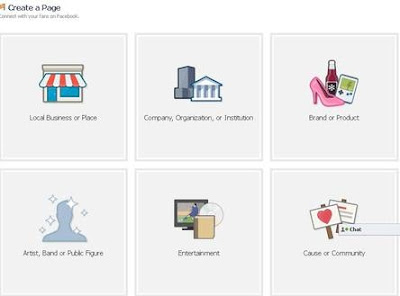
3. First all choose a main category for your Facebook Page from the six options available
    Namely :
(1) Local Business or Place
(2) Company Organization or Institution
(3) Brand or Product
(4) Artist, Band or Public Figure
(5) Entertainment
(6) Cause of Community

Once Completing your Creation Of Facebok Page
After completing 25 Likes you can get url as a www.Facebook.com/Expertisetechblog

you can Edit your information by Clicking On Edit Info you can change your Url as your Wish after liking 25 Peoples

These is Simple and Complete way to create a Facebook Fan Page

If you Like My simple and easy Procedure Please like me on www.facebook.com/expertisetechblog


[Read More...]


Facebook Video Calling: How To Set Up & Start a Video Call?


Facebook has finally started filling up the missing blanks on their social network as an answer to Google Plus Project. Together with Skype, Facebook has launched its
first ever Video Calling option on there website. Facebook Users can now not only chat but they can now see their loved ones smile, wink and say lol face to face! So far there are no latency issues and video calling loads faster and works without pauses or any other pros. You don't need to install any software or application to make this function work. Below you will find some useful Facebook video calling tips.

How do I set up video calling?

To start a video call with a friend you will first need to complete a quick, one-time setup:
  • To call a friend, click the video icon at the top of your chat window. 
  • Simply click the “Set Up” button and follow the easy instructions for how to set up video calling on your favorite browser.
  •  Once installed successfully the video call will start automatically or you can ring back your friend by clicking the video call button at the top right corner of your friends profile 


How do I start a video call with a friend?

After the one-time set up you are now ready to make your first call:
set up video call
  • Visit your friend’s profile and click the “Call” button in the top right corner. You can also click the video icon at the top of the chat window.
  • When your friend answers, be patient and wait for sometime till both your web cams are inter connected.
  • If your friend is unavailable or offline, you can leave a video message. That's indeed more like Yahoo's Voice service.
    For all these steps to correctly work you must make sure that both your webcam and microphone are connected to the right slots and are in a running condition. You can still use video calling even if you don't have a webcam. You will be able to talk to and see your friend but your friend will be able to hear your voice only.

    Sample Video Of Facebook Video Calling


    [Read More...]


    Return to top of page Copyright © 2010 | Platinum Theme Converted into Blogger Template by HackTutors